| |
|
|
THE SKINS: USING FASTFILE EXPLORER
This tutorial will give you a simple overview on the "Fastfile Explorer" tool, created by Christian Leinen and the LeadWorks team. The first part will deal with the tool's purposes, whereas the second one will bring you descriptions on it's interface. As a small bonus, you'll see how to create a patch for the Predator skin. It's really easy to understand, so don't miss it if you're interrested in making skins for AvP...
1) What is Fastfile Explorer ?
This is a set of tools that'll help you in making sounds & graphic mods to your AvP release. As you should know, the game's got ".ffl" files in the "fastfile" directory, plus ".dat" & ".txt" files. All of this is needed by the game because it contains all sounds & textures informations.
Now, let's consider that a single ".ffl" file represent a group of other files packed in it: the main purpose of this software is to browse / modify / delete / add files in these packages (called "fastfiles") so as to change the game itself.
Another useful purpose of this software is to allow you to create or install semi-automated mod patches for AvP: because it's easier to use, you'll be able to create ".pfp" files (i.e. fastfile patches). We will see more things on it in the next part...
2) The interface
Here, we'll detail each part of the interface. Just think of it like the Windows Explorer - with minor changes - and you've got the stuff !
Anyway, here are what we're talking about:
a) The menu bars
The menu bars is a classic, so we'll briefly explain items on it:
- The Menu Bar

| File : | | lets you open the whole database or a single fastfile, you can locate your AvP folder and quit the tool |
| Folder : | | to insert / rename or delete a folder in the database |
| Edit : | | copy / paste / delete commands, also lets you import / export custom files, see files properties & play wav sounds |
| View : | | to customize the canva color, activate transparency on graphics and refresh display |
| Patch : | | to create or install patches |
| Help : | | old link to Leadworks web site & "About" dialog |
- The Icon Bar

| First 4 icons : | | to open / create / rename & delete folders |
| Next 3 icons : | | to import / export / play wav sounds & display properties |
| Next 4 icons : | | copy / paste / rename / delete files |
| Last icon : | | to create a patch with the wizard |
b) The browsing panes
In this section, you can view & manage the packed files in specific folders:
- The Folder Pane
 |
|
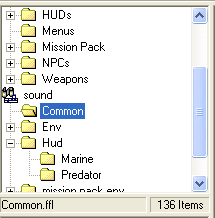
This pane lists the directory structure of all the packed files.
If the whole database is selected (from the "File" menu), you'll get 2 main sections that are "graphics" and "sound" : self-explanatory !
At the bottom of this pane, you can see the name of the fastfile in which the current directory is selected, plus the number of packed files in it. |
- The Files Pane
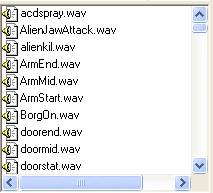
In the previous sample image, in the "sound" section, we selected the "Common" directory that is contained in the "Common.ffl" fastfile.
So what we've got here is simply the 136 ".wav" items (or packed files) of this directory.
With this pane, you'll be able to manage all the files you want but be careful: each modification on these files will change your original AvP resources ! |
|
 |
- The Content Pane
This final pane's purpose is to display the content of the selected file in the Files Pane. As we've seen it before, 2 types of content can be viewed:
a) Graphics:
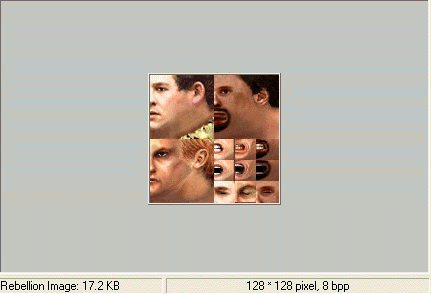
Here's the content of the file "\NPCs\Marine\Faces.rim", located in the "Tex52.ffl" fastfile. As you can see, this is the faces of the marines NPCs, with every states for the mouth & the eyes.
At the bottom, you can remark the type of the displayed file - i.e. a "Rebellion Image" in which you can store 3 compressed pictures - and it's size.
Important thing too is the format of the image: 128 pixels for the width, 128 for the height and 8 bits per pixel.
b) Sounds:
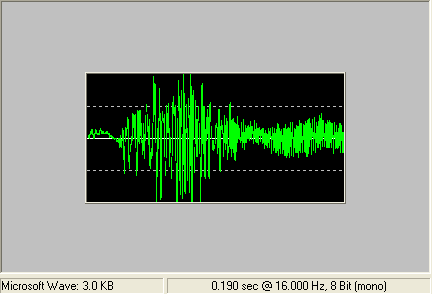
In this other case, we've got the content of the file "Common\ArmStart.wav", located in the "Common.ffl" fastfile. This represents a spectrum of the starting sound of the Xenoborg's arm movement.
At the bottom is displayed the file's type - i.e. a "Microsoft Wave" - and it's size.
The last infos are the following: the sound's length is 0.190 seconds, the sampling rate is 16 kHz with a size of 8 bits in mono format.
Notes: For both of these contents, you can left-click on the image to make a zoom. The "Play/Properties" button allows you to play the selected sound or to display the image properties (to compress it, make it transparent...).
3) Creating a patch
Let's finish this explanation with a patch creation. We'll change the original Predator skin (i.e. the "base skin", not the hairs & wrists) by another one that I've created.
First, open Fastfile Explorer, then in the Folder Pane, select the "Graphics > NPCs > Predator" item. Now you must see the files "Mask.rim" & "Wrists.rim" in the Files Pane. The first file is the one we'll change & the second one's for the wrists (that we don't care as said previously).
a) Creating a backup file
Because you'll modify your original "Mask.rim" ressource file, we'll
first create a copy of it that you'll be able to reinstall after this tutorial.
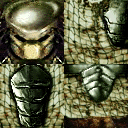
Now select the file in the Files Pane: you should see this image in the
Content Pane, then in the menu, click on "Edit > Export...". Convert the
image in the Bitmap format ("Mask.bmp") and save it to a folder of your choice. |
|
 |
It's now ok for our little manipulation !
b) Installing the new skin
Good, so the next thing to do is: right-click on the following image, then
save it to a directory of your choice (not the one you've used for your backup,
because the file's got the same name as the original one) and convert it to the Bitmap format.
After that, in Fastfile Explorer, go to the same directory as above
("Graphics > NPCs > Predator"), click anywhere in the Files Pane, then in
"Edit > Import...", select the image you've just get from this page and
confirm the importation when prompted. |
|
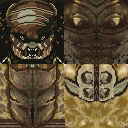 |
Now, the new skin must appear in place of the "Mask.rim" file.
Note: at this point, if you launch AvP, you'll see the new Predator skin because we've just imported the new one in the game, not in a patch yet.
c) Creating the patch
The question is: why did we imported the skin in the game instead of creating the patch directly ? The reason is fairly simple: I've made the skin as a simple bitmap file, whereas the AvP graphic files are ".rim" files. So the answer is that we did this to convert the file in the RIM format.
Here's the final step of this tutorial: right-click on the new "Graphics > NPCs > Predator > Mask.rim" file, choose "Add to patch". The following window must appear:
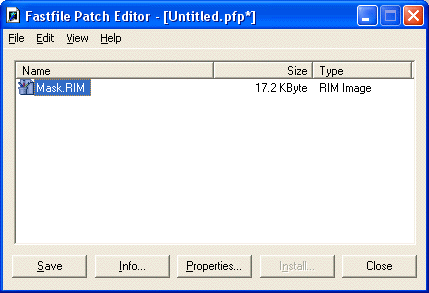
Just click on the "Info..." button and put informations on the patch itself:
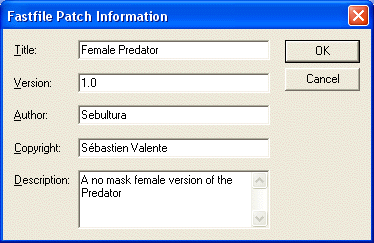
And finally, click on the "Save" button to name your patch ("FemalePredator.pfp" in this example), then close the dialog box: your patch is ready !
Note: now that your patch is ok, you can decide to backup your original Predator skin. For this, just repeat the b) step with the first "Mask.bmp" file.
Here's a sreenshot of your new friend:
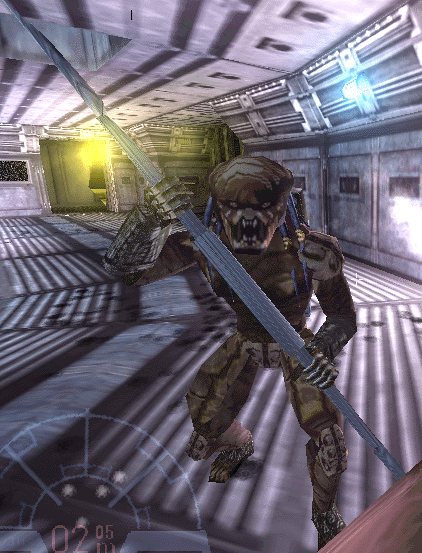
The patch is at disposal here and you're authorized to use it for any software, under the unique condition that my name must be precised in it.
|